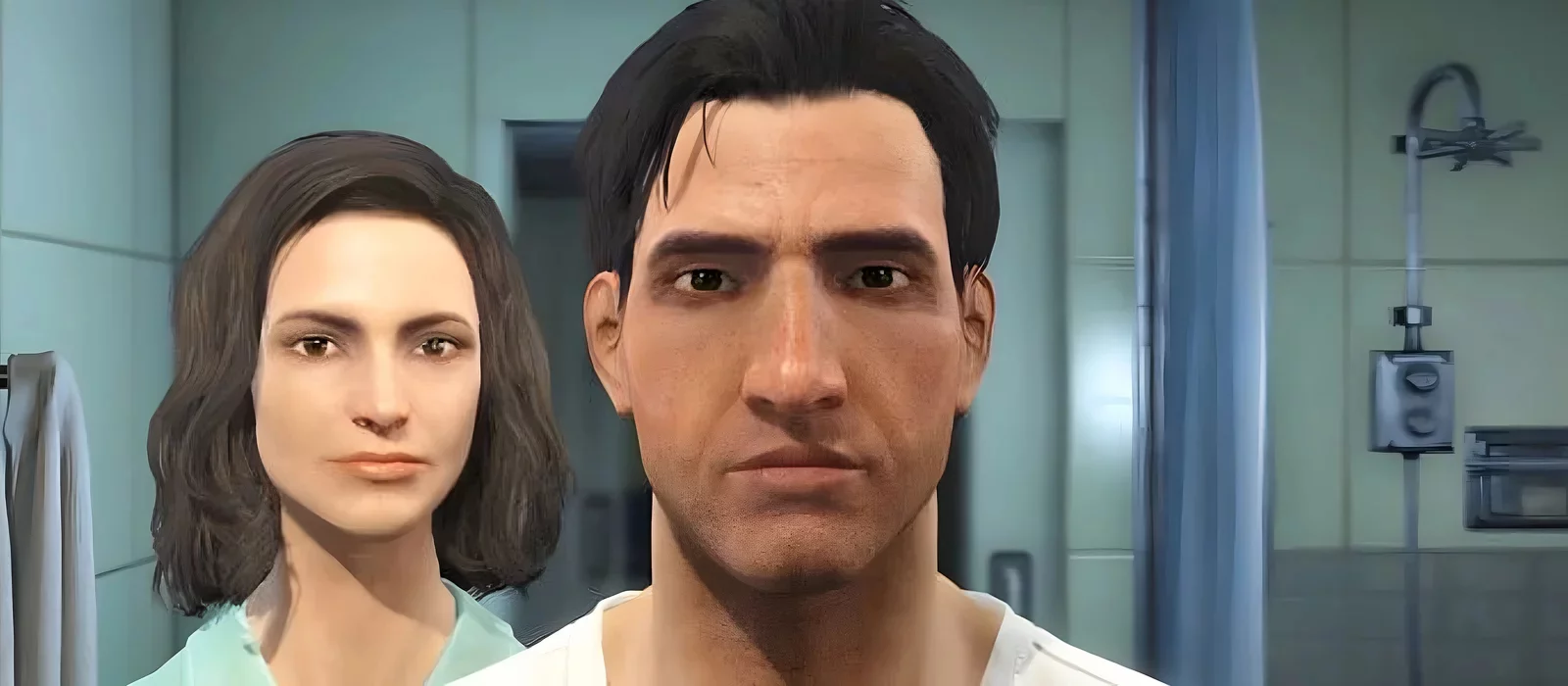
Fallout 4'te Karakter Oluşturma Rehberi
 Vladyslav Shamshurov
Bu kılavuzda, Fallout 4 ile ilgili çeşitli oyun mekanikleriyle ilgili en sık sorulan bazı soruları ele alacağız; bu mekanikler, belirsizlikleri nedeniyle birçok oyuncuyu zor durumda bırakmıştır. Bunlardan biri, örneğin, Fallout 4'teki karakter yaratma mekanizmasıdır.
Fallout 4'te, Bethesda'daki geliştiriciler karakter yaratma için yeni bir şema geliştirmiştir. Artık, farklı metin ayarlarına sahip kaydırıcılar yerine, oyuncular, en azından PC'de, fare tekerleğini kullanarak imleci hareket ettirmeleri önerilmektedir. Bu tür bir yaklaşımı sezgisel olarak adlandırmak zor, çünkü oyuncular artık körlemesine seçim yapmak zorunda kalıyorlar ki bu, editörün sunduğu olanaklar göz önüne alındığında oldukça hayal kırıklığı yaratıyor. Belki de bir ünlü gibi oynamak istiyorum, ancak onların görünümünü yeniden yaratmak çok zor olacak.
Her halükarda, yeni bir oyunun en başında, bir karakter veya hatta iki karakter yaratmanız istenecektir. İşte bu menünün nasıl görüneceği:
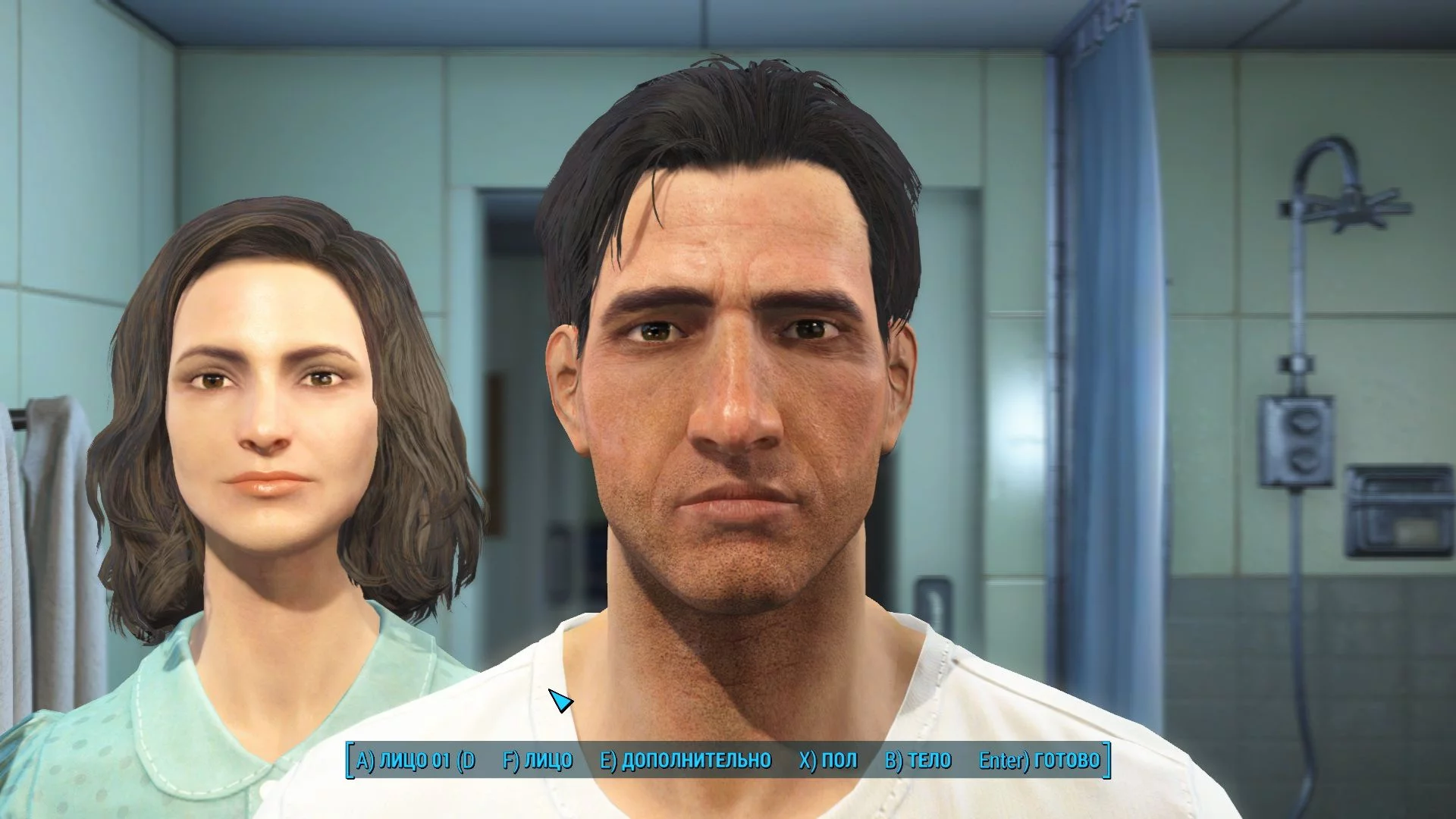
Ekranın altındaki başlıkların ne anlama geldiği hakkında biraz bilgi (bazı tuşlar varsayılanlardan farklıdır):
- A ve D — karakterin önceden oluşturulmuş görünümüne karşılık gelir, burada 01 varsayılan karakter modelinin numarasıdır. Eğer uğraşmak istemiyorsanız, 15 seçenek arasından seçebilirsiniz;
- F Yüz — karakterin yüzünü oluşturmanıza olanak tanır, ne kadar yetenekli olduğunuza bağlıdır;
- E Ekstralar — ek ayarları açar, yaralar veya makyaj ayarlayabilirsiniz;
- X Cinsiyet — karakterin cinsiyetini belirler, çünkü bir erkek dışında kadın bir protagonist seçebilirsiniz;
- B Vücut — karakterin vücut parametrelerini ayarlar. Analizimize buradan başlayacağız.
Vücut
Yani, Vücut için üç ayar vardır — zayıflık, dolgunluk ve kaslar, bir üçgen olarak tasvir edilmiştir. Ortada, yerelleştiricilerin yanlışlıkla zayıflık yerine koyduğu incelik bulunmaktadır:
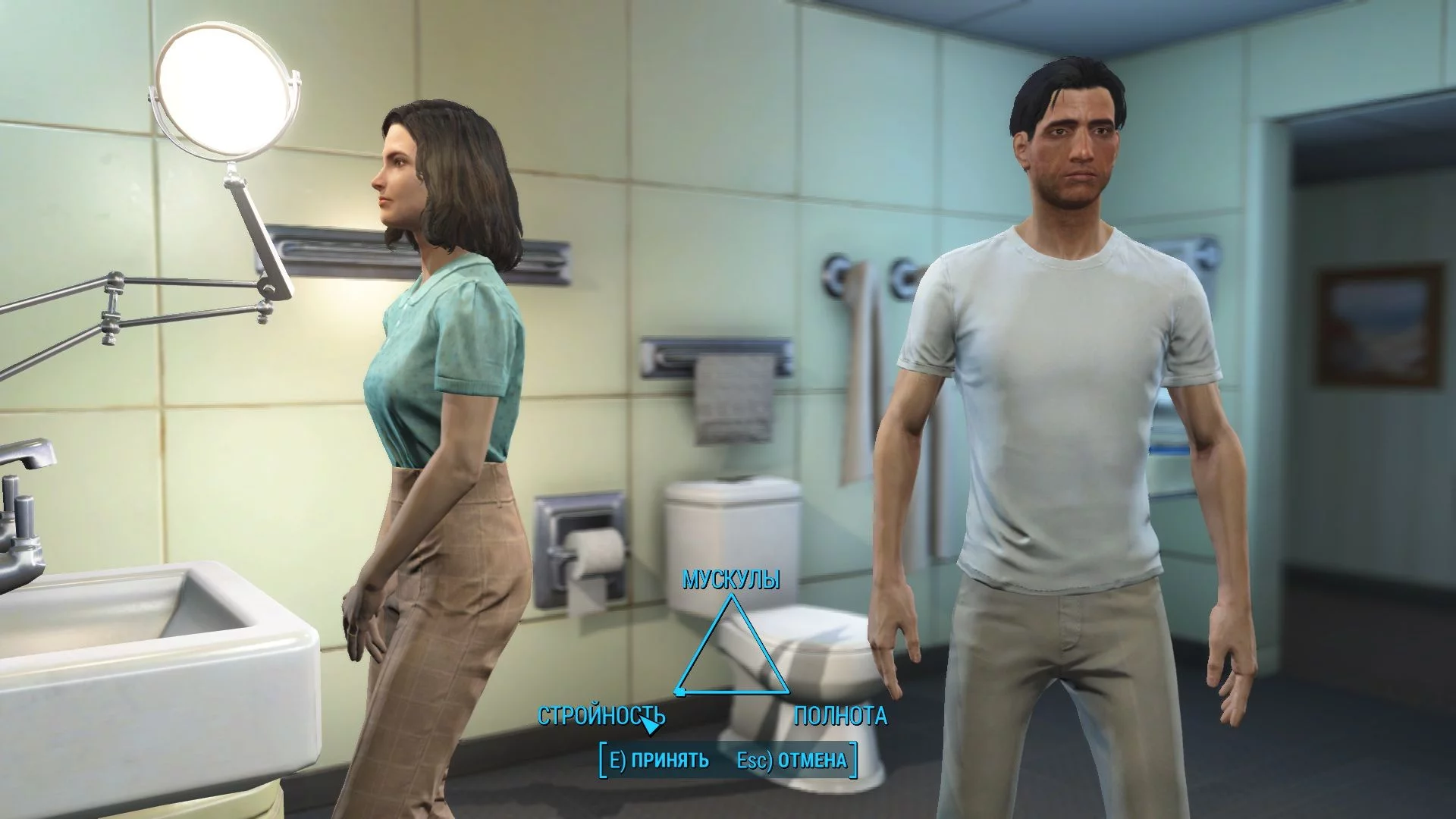
Ne yazık ki, bu parametreler gerçek zayıflık veya kaslılık yerine karın varlığı veya yokluğu ile daha çok ilgilidir. Bu nedenle, oyun dünyasında karakterinizi soyduğunuzda, onların gerçekten bir iskelet kadar zayıf olmalarını beklemeyin.
Değişiklikleri kaydedin ve ana ekrana geri dönün (makaledeki ilk resim).
Yüz
Şimdi geliştiricilerin görünüm oluşturucuya yaptığı değişikliklerden bahsedelim. Bu menüde, karakterin açısını sağ fare düğmesini basılı tutarak ve fareyi hareket ettirerek değiştirebilirsiniz.
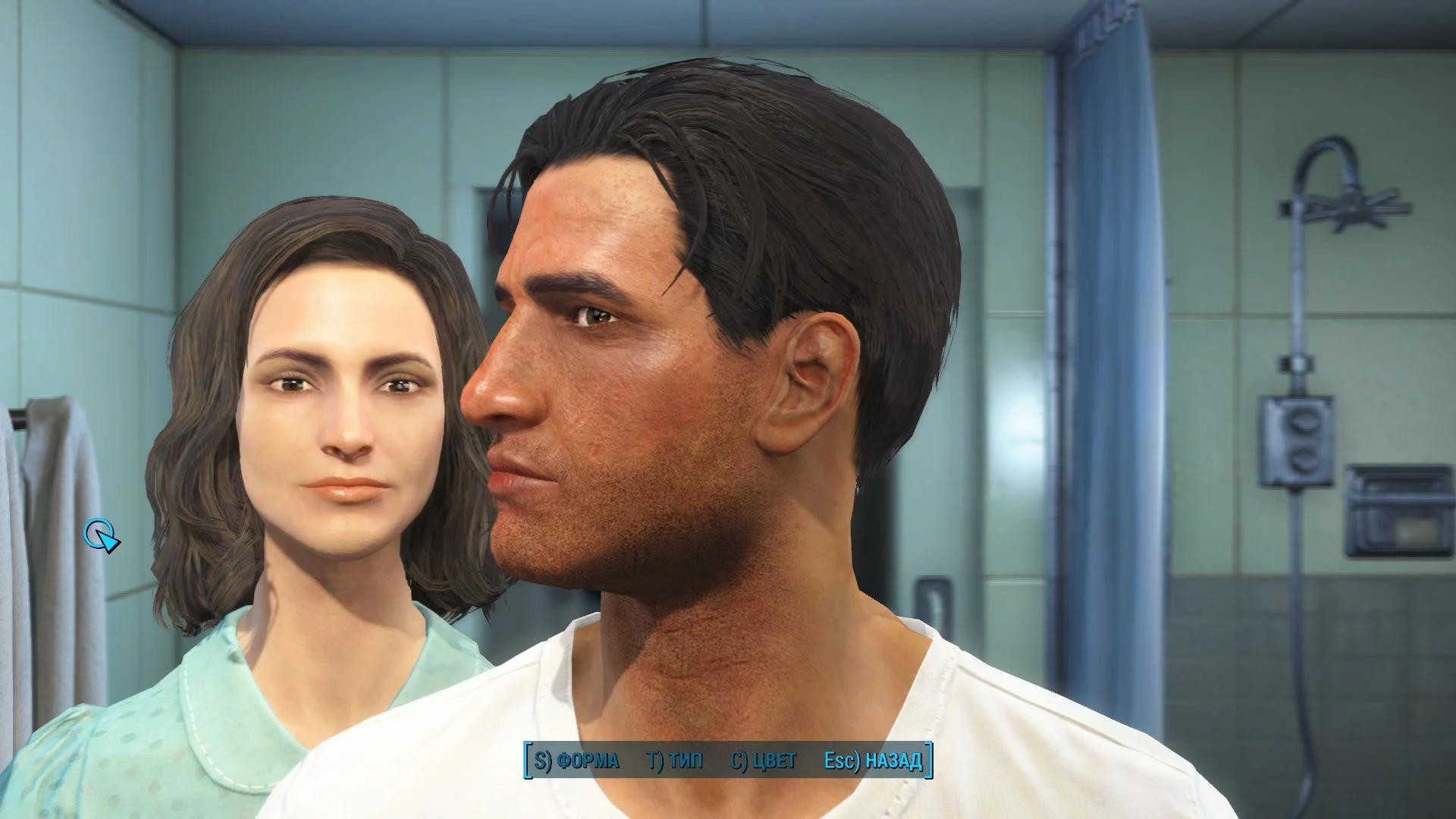
Bu moda girdiğinizde, fare imlecinin bir tekerleğe dönüştüğünü unutmayın, bu nedenle fareyi yavaşça yüzün farklı kısımlarının üzerinde hareket ettirmeye başladığınızda, değişikliklerin uygulanacağı alanları vurgulayacaktır.
Ayrıca, aşağıdaki başlıklar sayesinde hangi nesnenin şu anda seçili olduğunu öğrenebilirsiniz:
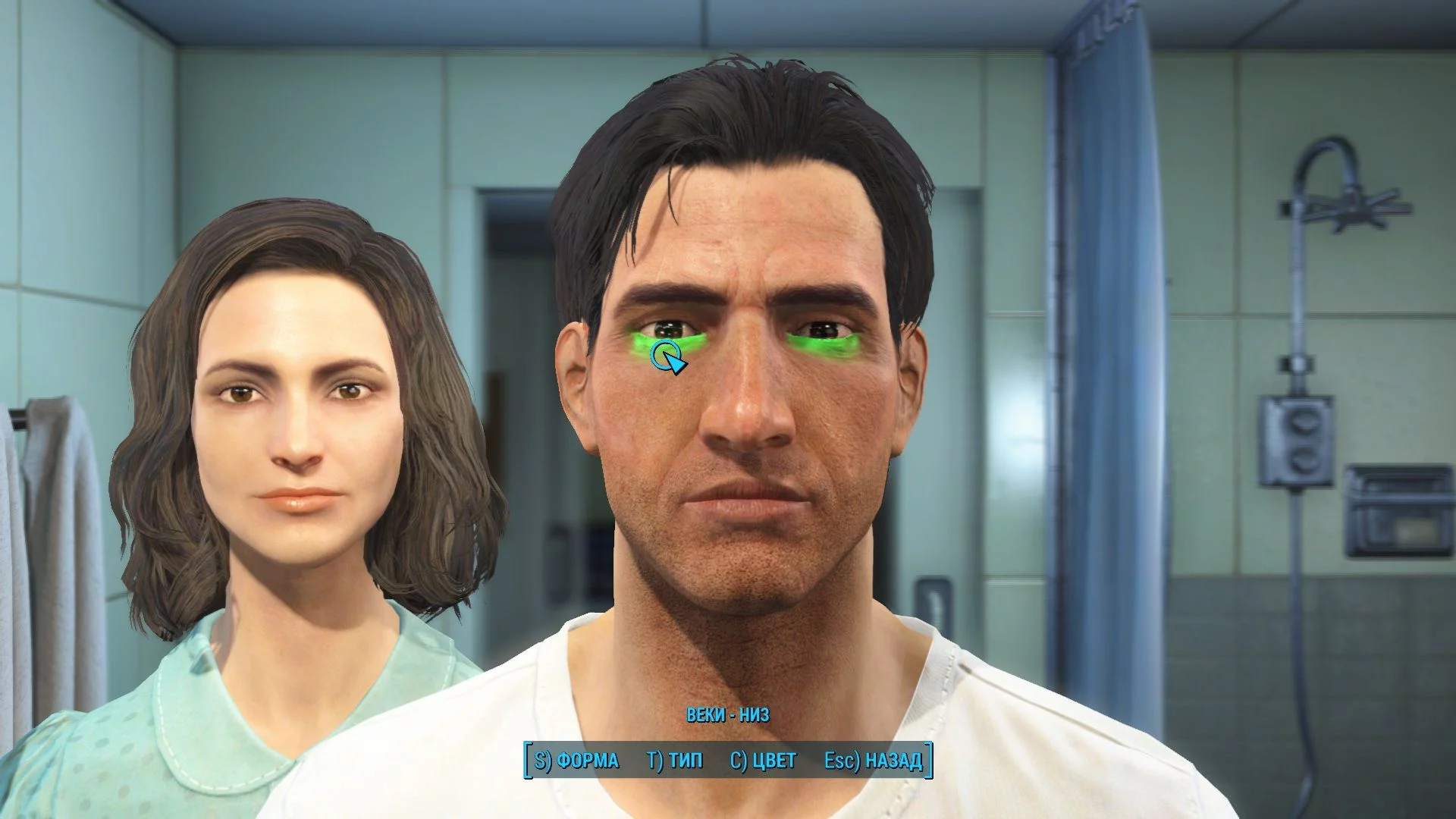
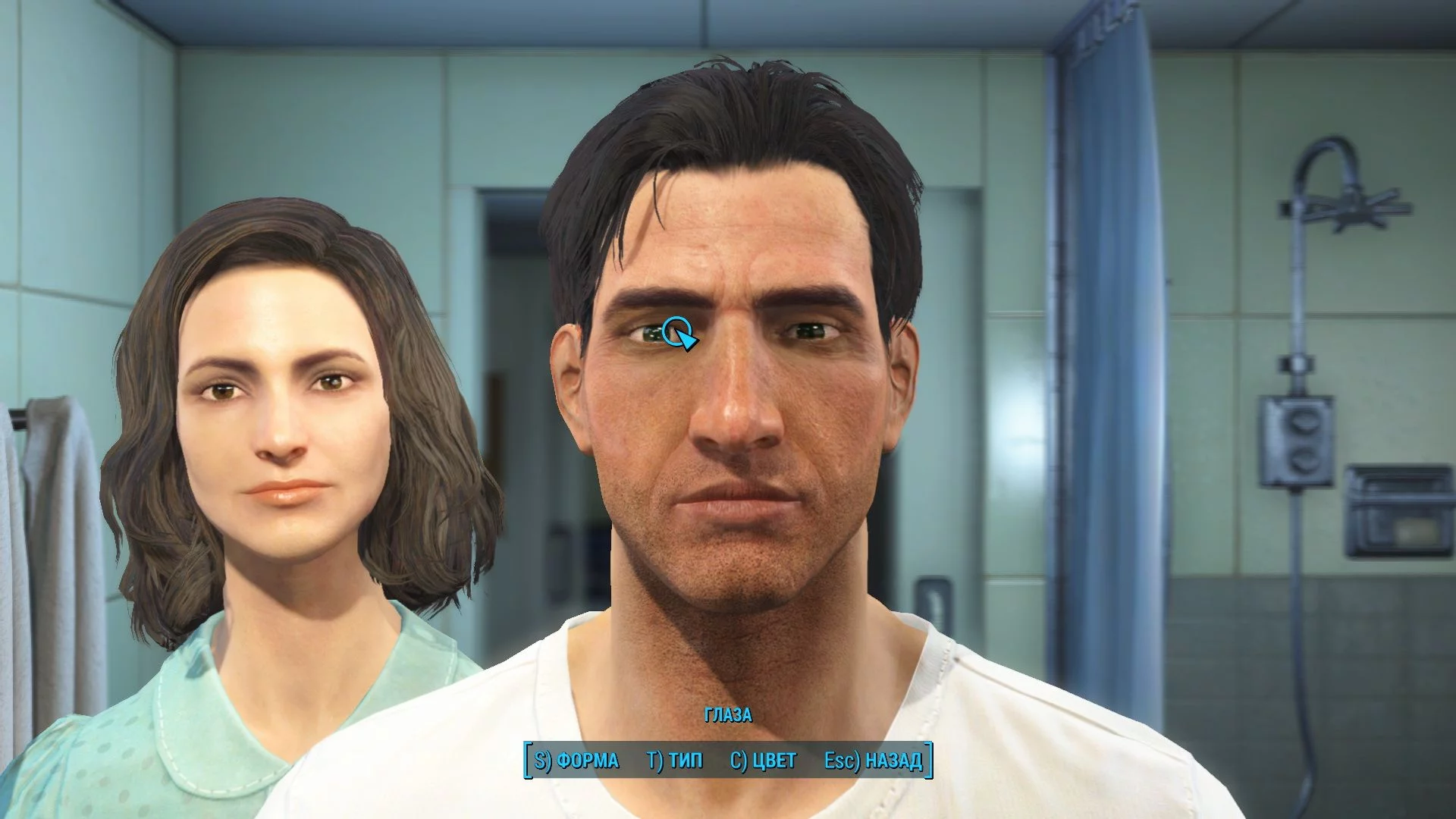
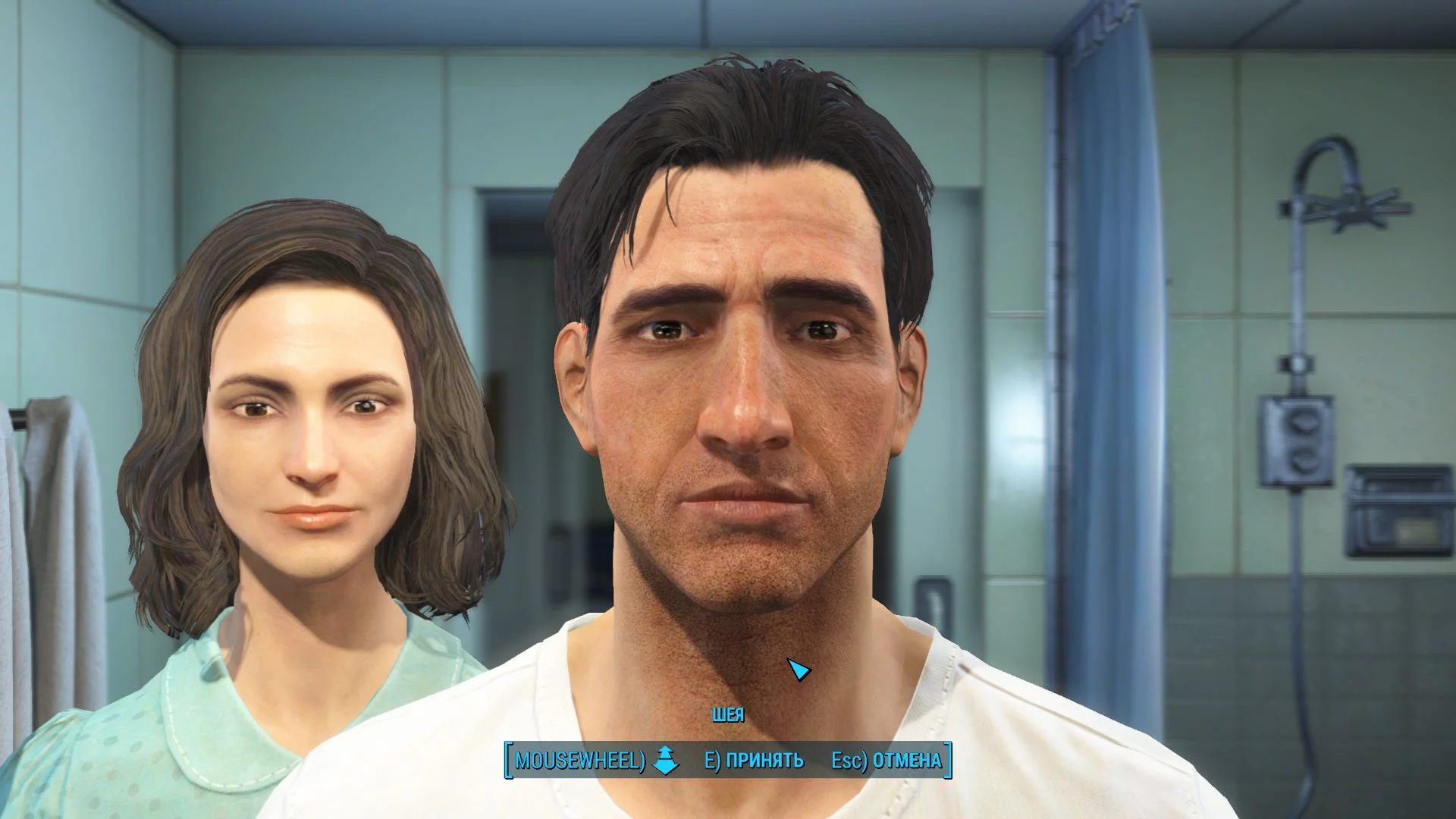
Buradan şekli doğrudan değiştirebilir, fare tekerleğini kaydırmaya başlayabilir veya seçimlerin yanlış hizalanabileceği ve başka bir şeyi değiştirmeye başlayabileceğiniz zamanlar için uygun olan Şekil alt menüsüne girebilirsiniz. Bu alt menüde, fareyi aynı şekilde kaydırmanız gerekiyor:
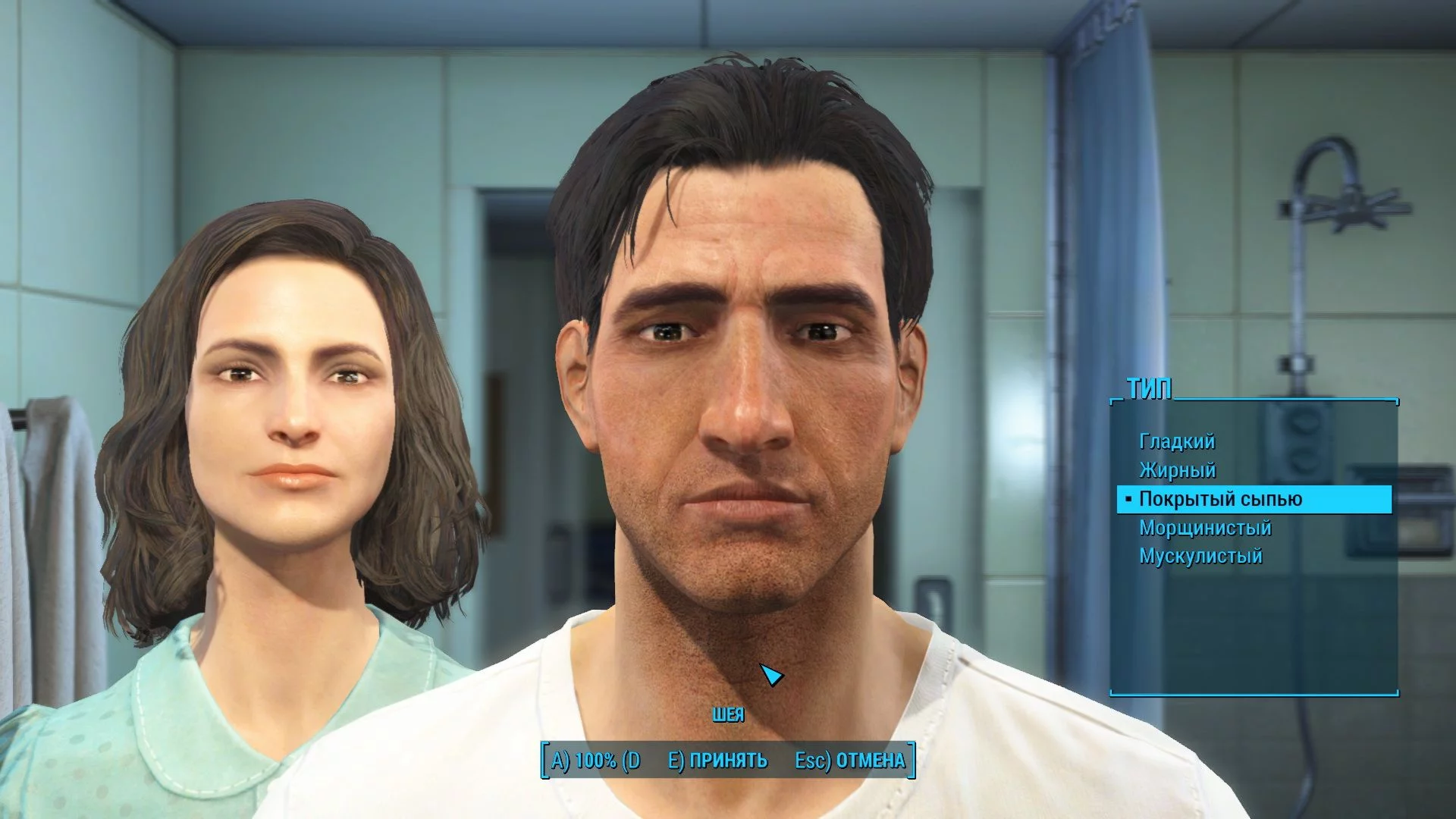
Yüz menüsündeki Tür alt menüsüne dikkat edin (üç ekran görüntüsü yukarıda). Oraya giderseniz, farklı vücut parçaları için saç yoğunluğunu, kaslılığı ve benekliliği ayarlayabilirsiniz ve A ve D düğmeleri ölçeği belirler, böylece yoğun veya seyrek saç, kaslar veya yüz üzerindeki benek sayısını ayarlayabilirsiniz:
Karakterin cilt rengi, Yüz menüsünden ilgili düğmeye basarak ayarlanır. Renkleri bir listeden seçebilirsiniz:
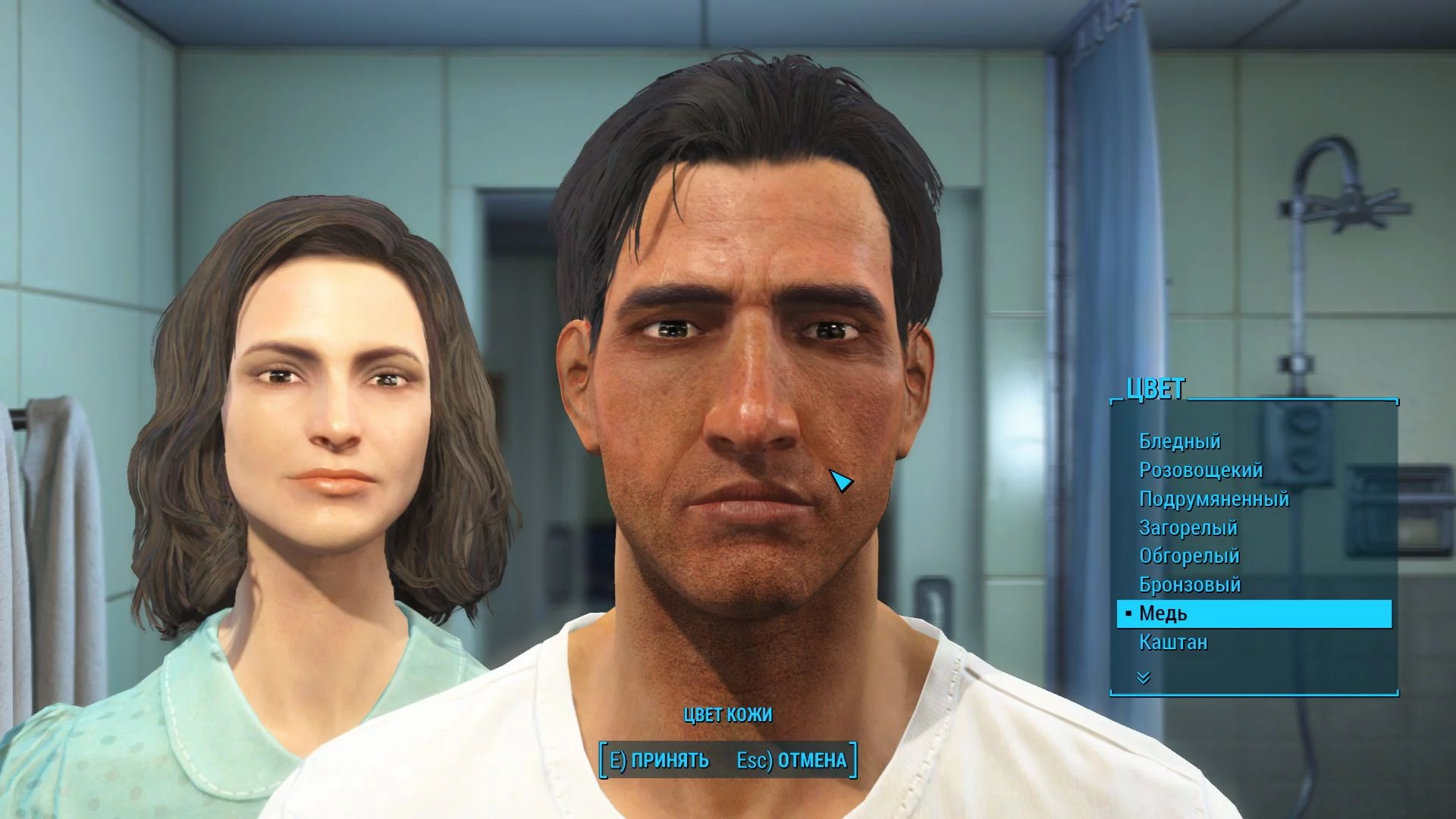
Fallout 4'te karakterinizin görünümünü nasıl özelleştireceğimizi açıkça açıkladığımızı umuyoruz. Oyuna girdiğinizde, karakterin görünümünü bir daha değiştiremeyeceksiniz, ancak Diamond City'deki berberde saç stilini caps karşılığında değiştirebilirsiniz.
Ek Görünüm Ayarları
İşaretler, yaralar, hasar (yanıklar, morluklar, kesikler) ayarlayabileceğiniz Ekstra menüsüne geçiyoruz:
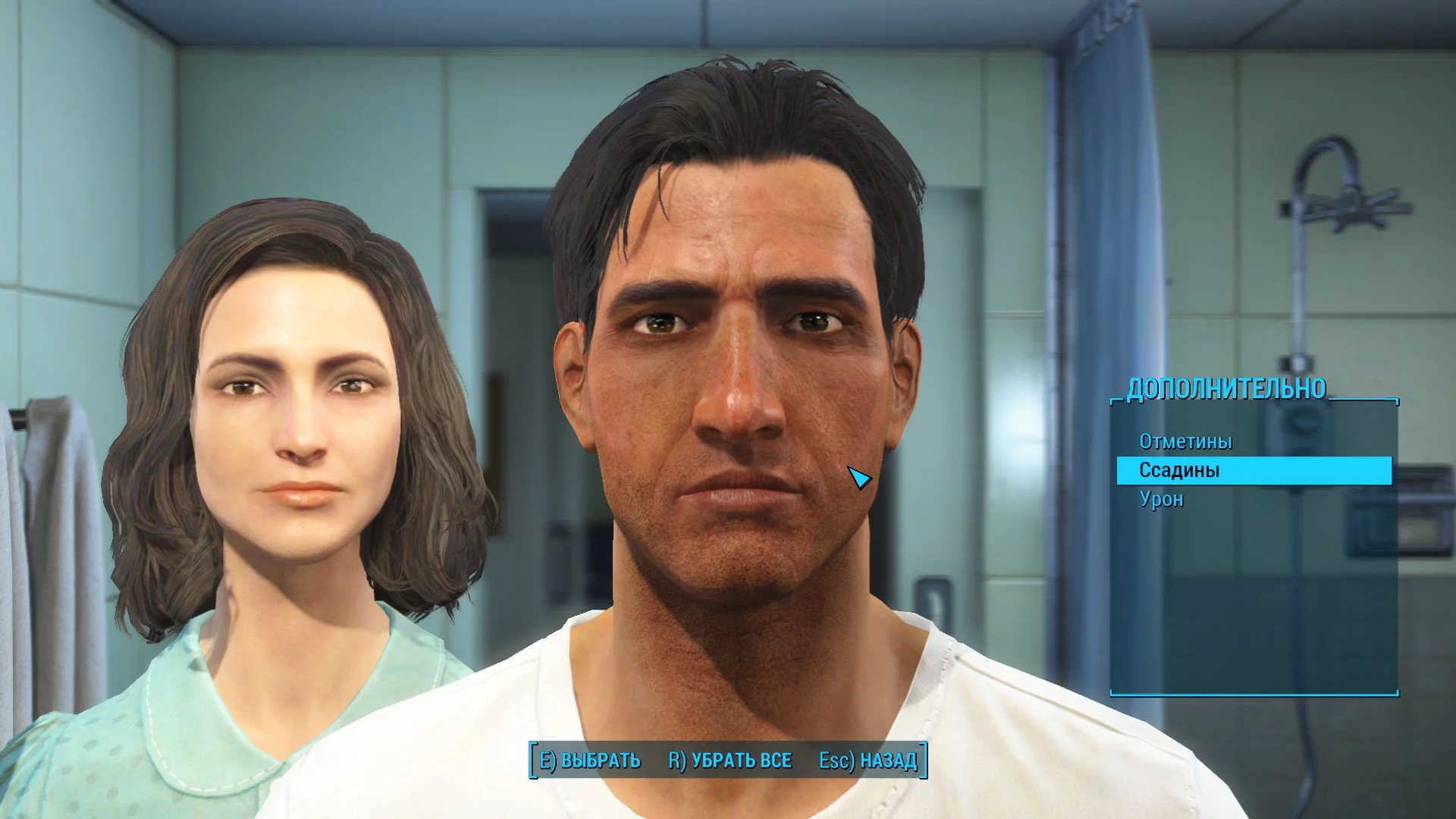
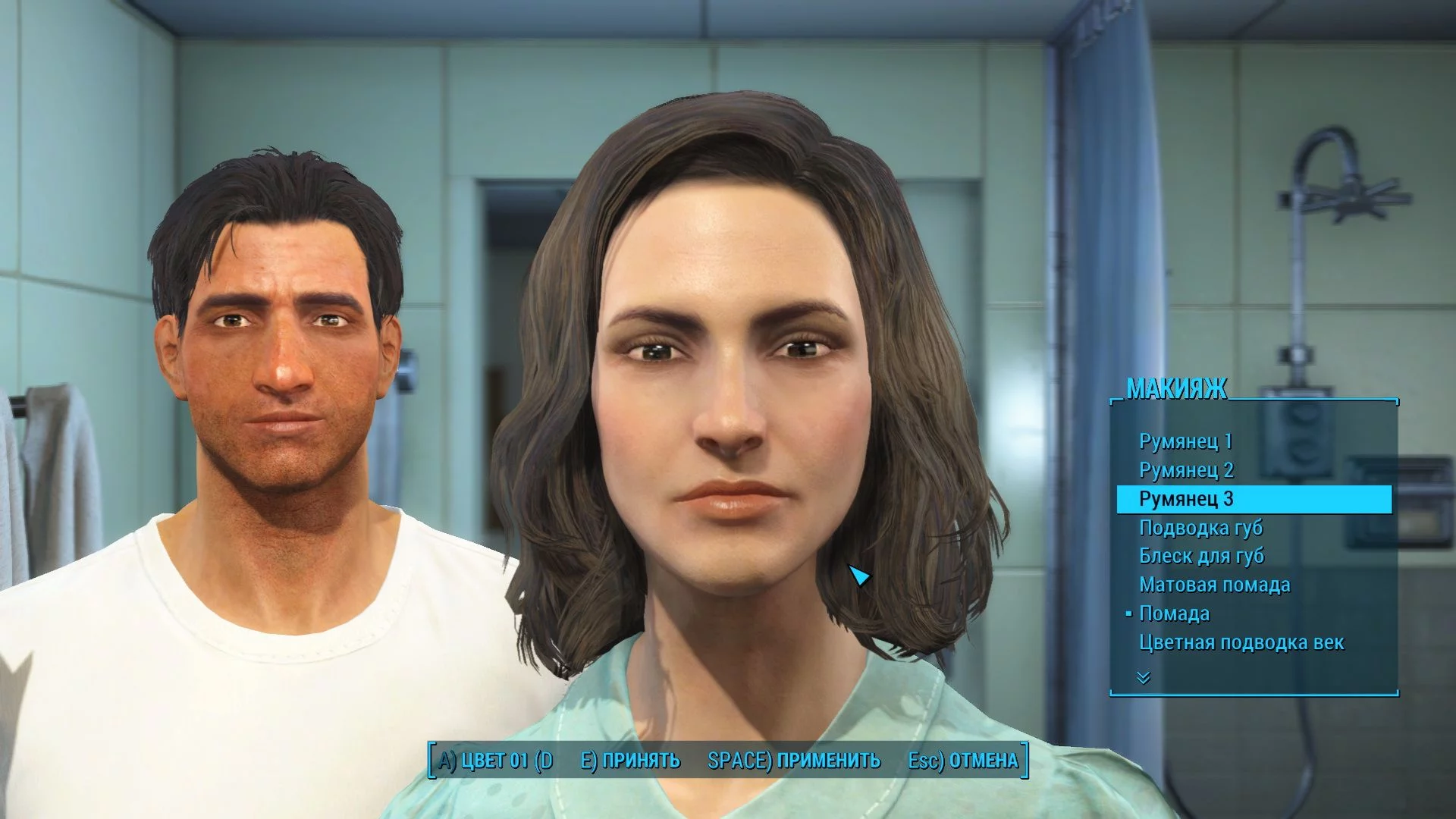
Eğer bir kadın karakter seçerseniz, bu menüde Makyaj seçeneği belirecek ve kadın yüzünde çeşitli küçük değişiklikler olacaktır:
Tebrikler! Karakterinizin görünümünü ayarlamayı bitirdiniz!